
Application hosting
Deploy Express applications
A complete guide to deploying an Express application with HostRight Control Panel, production environment variables, static assets, databases, Redis and SSL.
Express is a flexible Node.js framework for websites, APIs, webhooks and background-facing HTTP services. On HostRight, the managed Node.js application tool connects your domain to an Express process while you keep control of the code, dependencies and configuration.
This page is complete on its own. It uses an application named myapp and a domain named example.com. Replace those values with your own.
Decide where files belong
Keep the application outside the domain's public directory:
apps/myapp/
├── app.js
├── package.json
├── package-lock.json
├── public/
├── routes/
├── views/
└── .env.example
Do not upload production secrets, SSH keys or the real .env file into a browser-accessible directory. Use HostRight Control Panel environment variables for secrets.
Prepare Express locally
Install Express and create a production script:
npm install express
npm install --save-dev
Set the package start script to node app.js. A useful production entry point is:
const express = require('express');
const path = require('node:path');

const app = express();
const port = Number(process.env.PORT || 3000);

app.set('trust proxy', 1);
app.use(express.json({ limit: '1mb' }));
app.use(express.urlencoded({ extended: true }));
app.use(express.static(path.join(__dirname, 'public'), {
  maxAge: '1h',
}));

app.get('/health', (request, response) => {
  response.json({ ok: true });
});

app.get('/', (request, response) => {
  response.send('Express is running on HostRight.');
});

app.use((error, request, response, next) => {
  console.error(error);
  response.status(500).json({ error: 'Internal server error' });
});

app.listen(port, '127.0.0.1', () => {
  console.log('Express application started');
});
The important hosting detail is that the app listens on process.env.PORT. Do not hard-code a public port. The managed application layer supplies the port and maps the domain to it.
Create the managed application
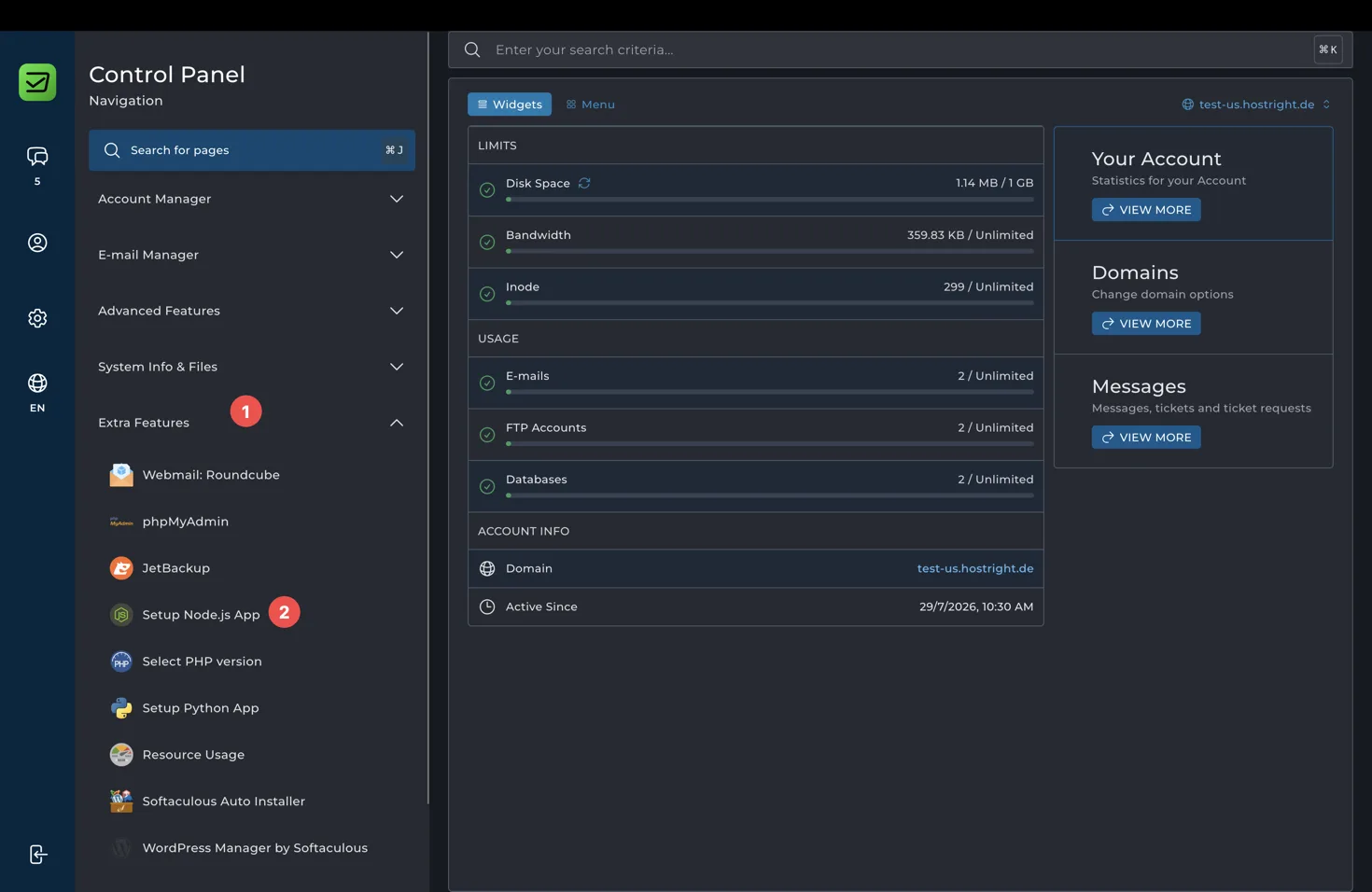
Open HostRight Control Panel, expand Extra Features, and choose Setup Node.js App.
Choose Create Application.
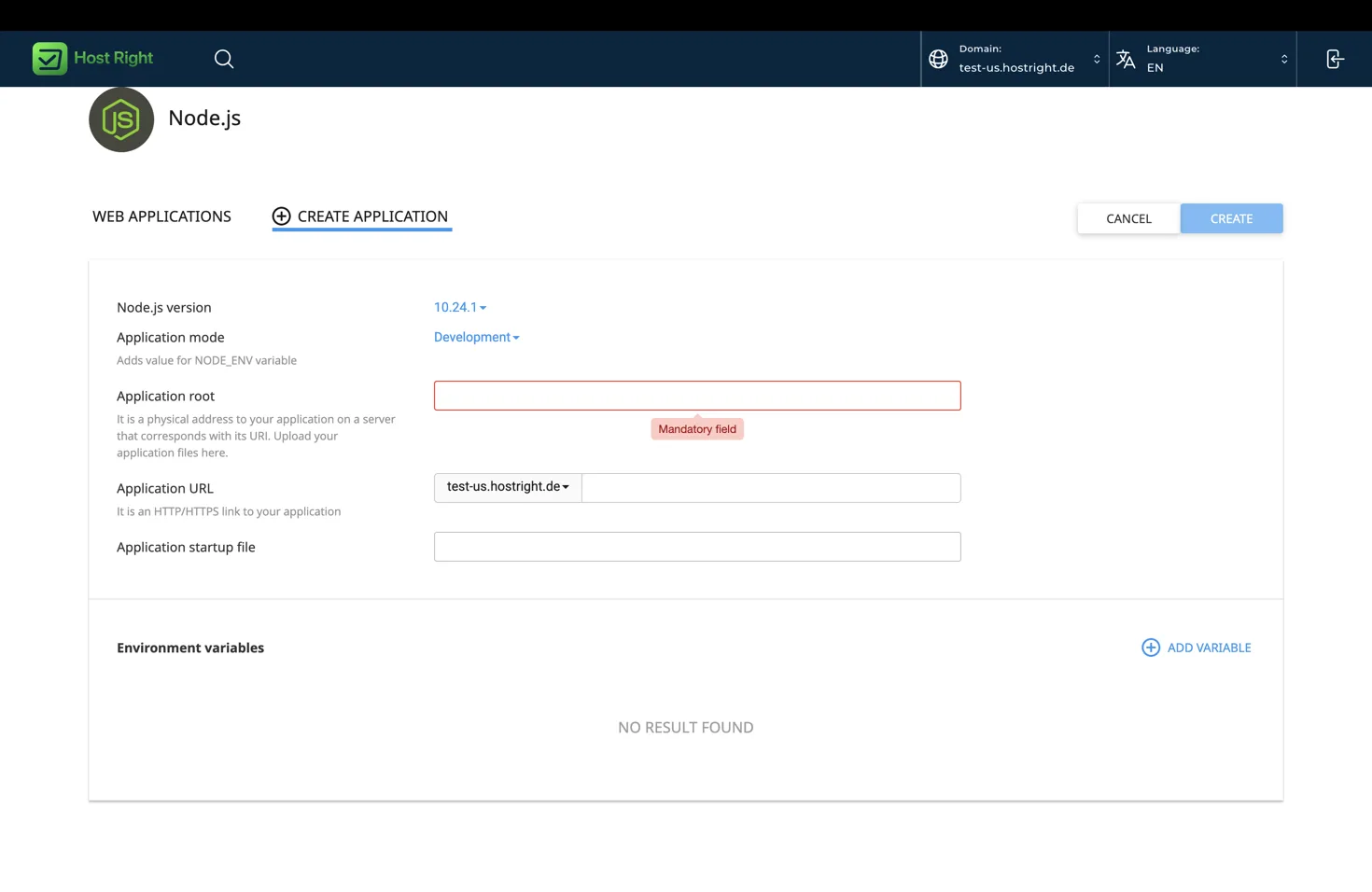
Use these values:
| Field | Value |
|---|---|
| Node.js version | A supported version compatible with package.json |
| Application mode | Production |
| Application root | apps/myapp |
| Application URL | example.com |
| Startup file | app.js |
The panel may show a recommended runtime. Select it only after checking that your dependencies support it. Choose Production mode for a live site.
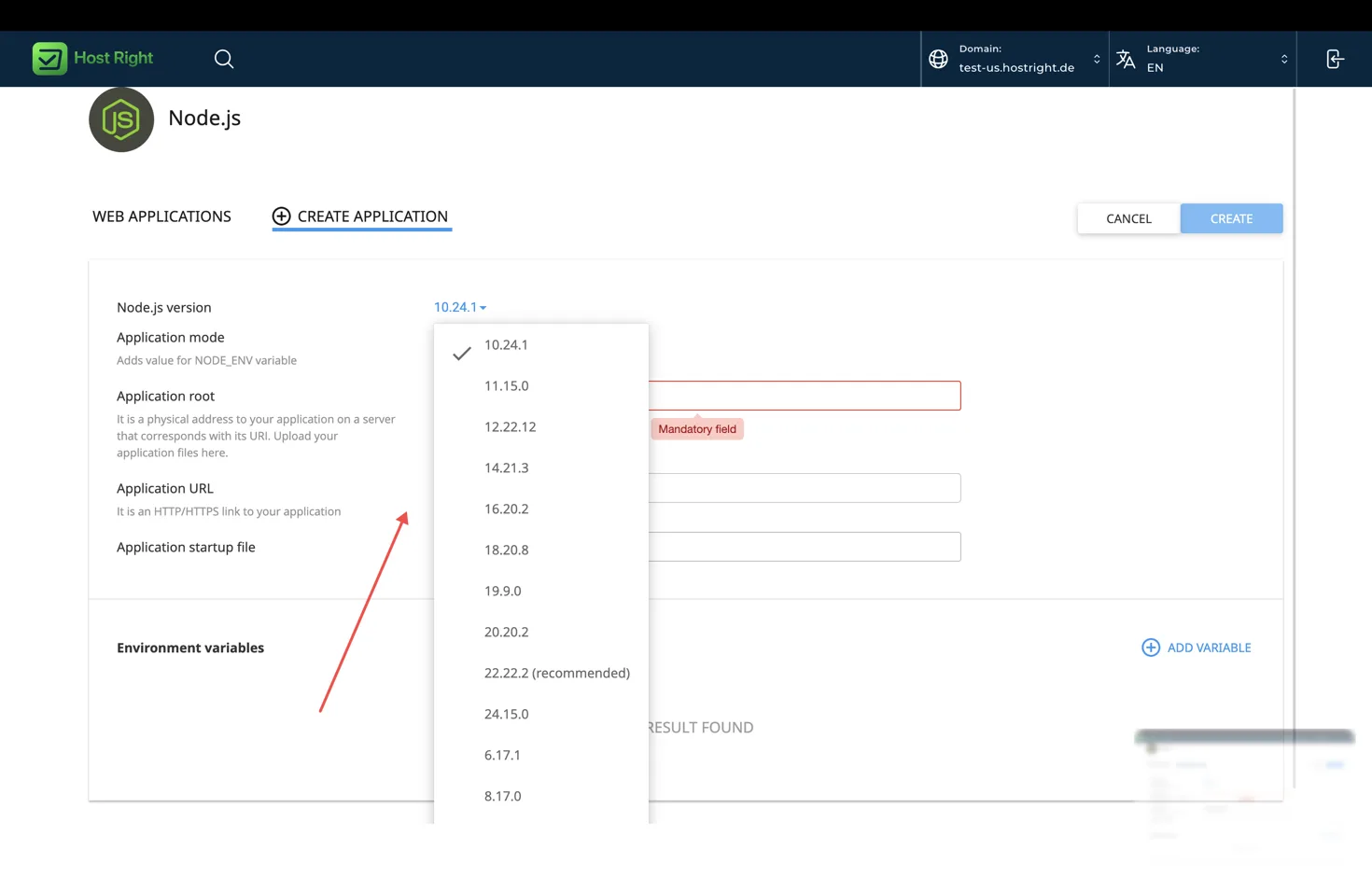
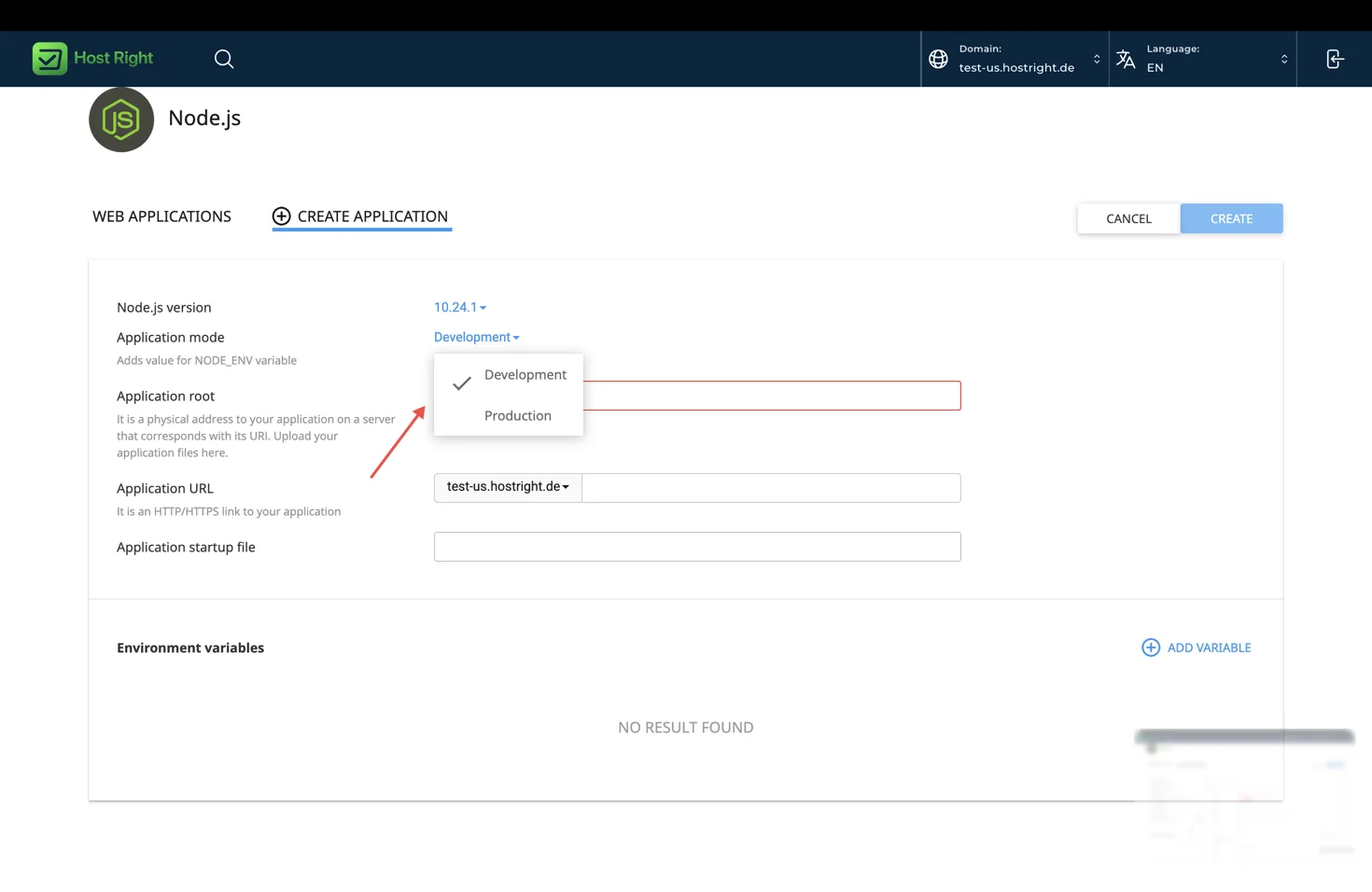
Add NODE_ENV=production, SESSION_SECRET, DATABASE_URL and Redis settings as environment variables. Do not paste passwords into app.js or commit them to Git.
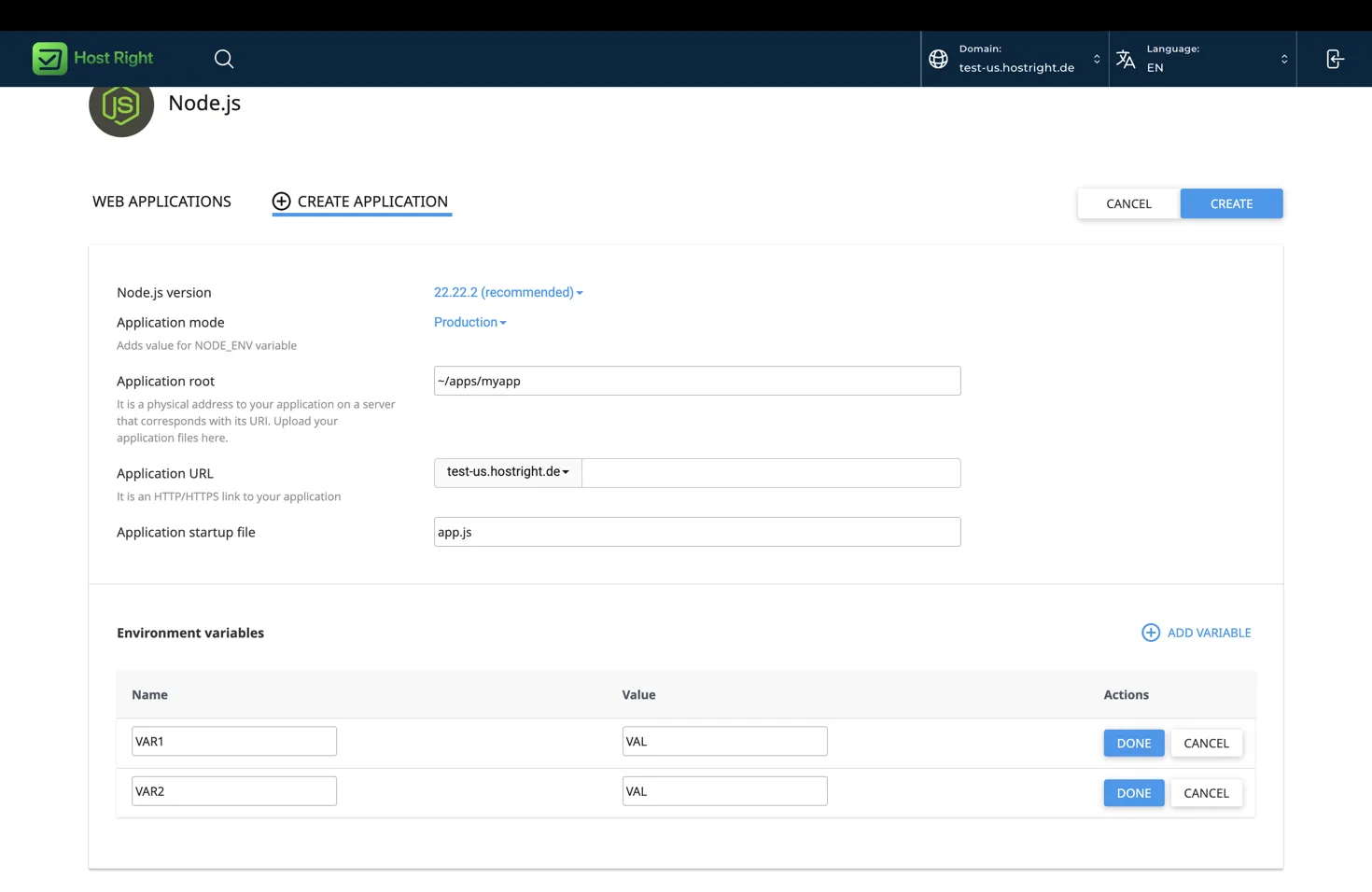
Select Create, wait for the application to finish provisioning, and open its details page.
Upload the application
Git over SSH is the most repeatable option:
mkdir -p ~/apps
cd ~/apps
git clone YOUR_REPOSITORY_URL myapp
cd myapp
npm ci
For a local upload, use SFTP. FTP can transfer files, but it is less secure and cannot install dependencies or restart the process.
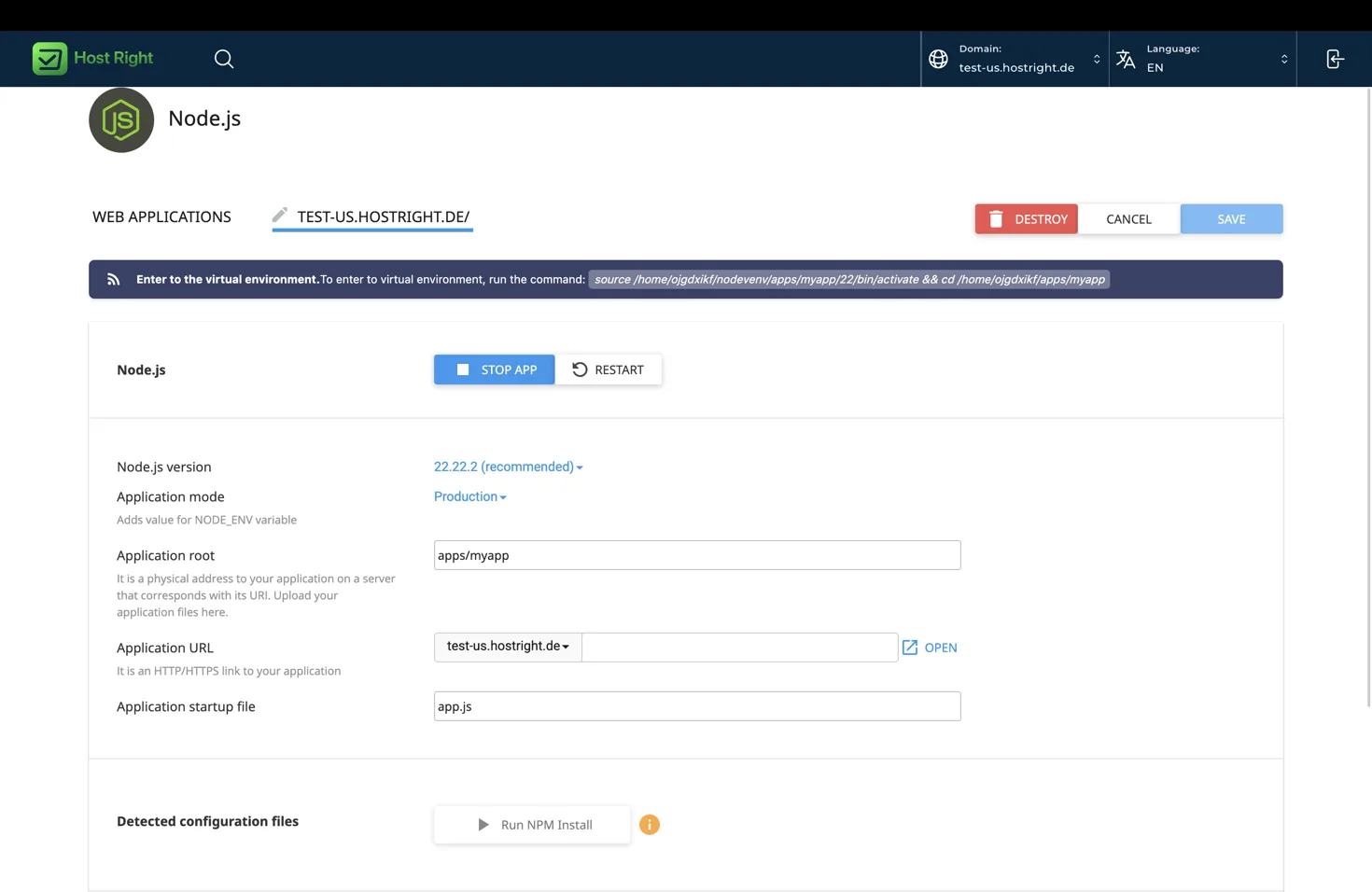
Use the environment command shown by HostRight Control Panel before running server commands. It activates the managed Node.js runtime and enters the application directory. Then use npm ci when package-lock.json is committed:
npm ci --omit=dev
npm run build
The application details page may also provide Run NPM Install. Use Restart after installing packages or changing environment variables.
Static files and templates
Express serves static files from the directory passed to express.static. Keep browser assets in public and use absolute paths rooted at the domain:
app.use('/assets', express.static(path.join(__dirname, 'public')));
Test an asset at https://example.com/assets/app.css. If it returns 404, confirm that the file was uploaded, the path is correct, and the process was restarted only if the application code changed.
For cacheable assets, use versioned filenames or a build tool. Do not store user uploads in the application source directory without a backup and retention plan. Large media is usually better in S3-compatible object storage.
Add a database
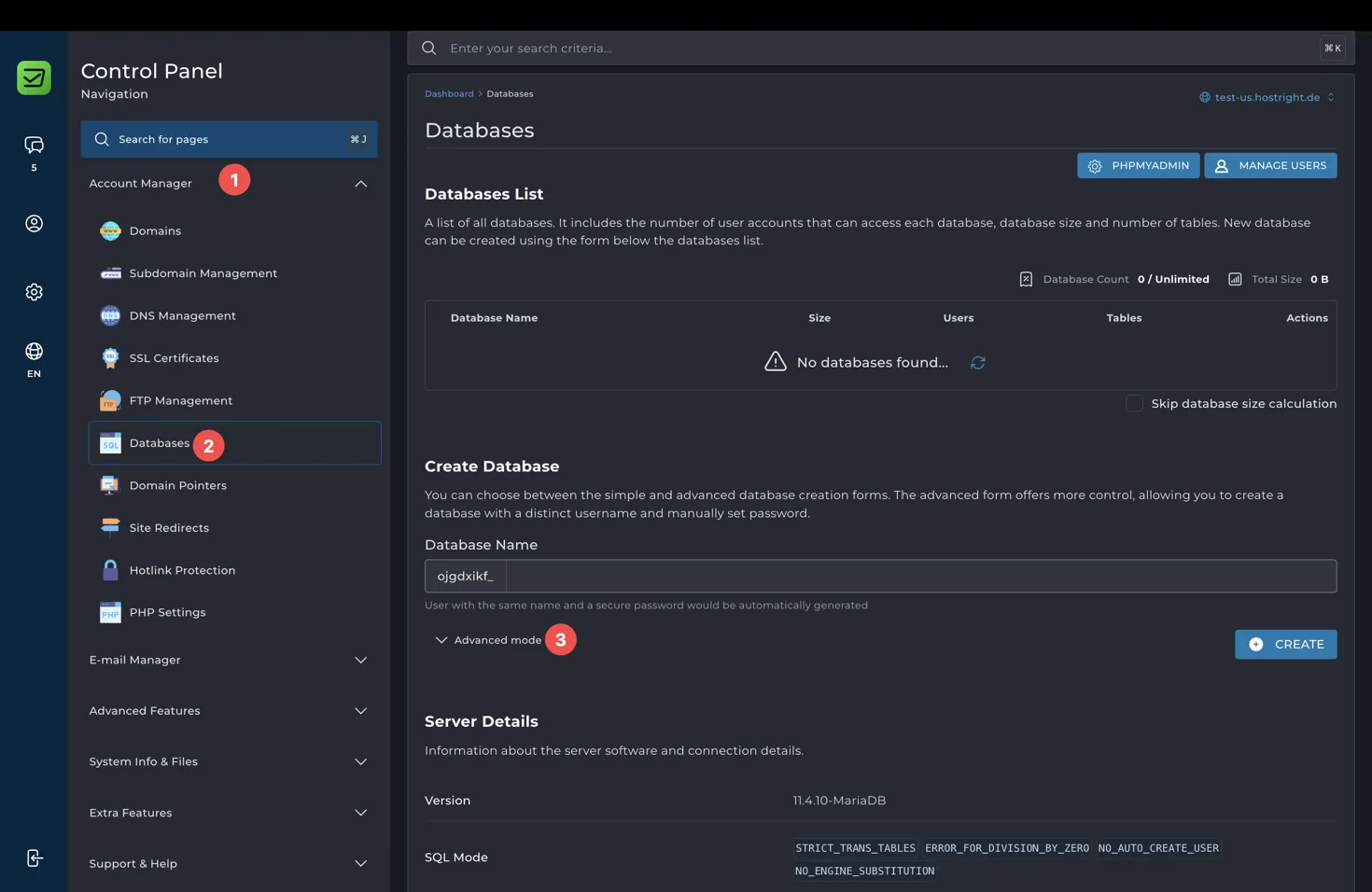
Create the database and user in HostRight Control Panel before configuring Express. Grant the user access to the database, then add the connection string as an environment variable.
For a PostgreSQL client:
const { Pool } = require('pg');
const pool = new Pool({ connectionString: process.env.DATABASE_URL });

app.get('/users', async (request, response, next) => {
  try {
    const result = await pool.query('select id, email from users limit 50');
    response.json(result.rows);
  } catch (error) {
    next(error);
  }
});
Run migrations from the application root before restarting:
npm run migrate
Use the database management guide after this basic configuration if you need the panel-specific database creation flow.
Add Redis
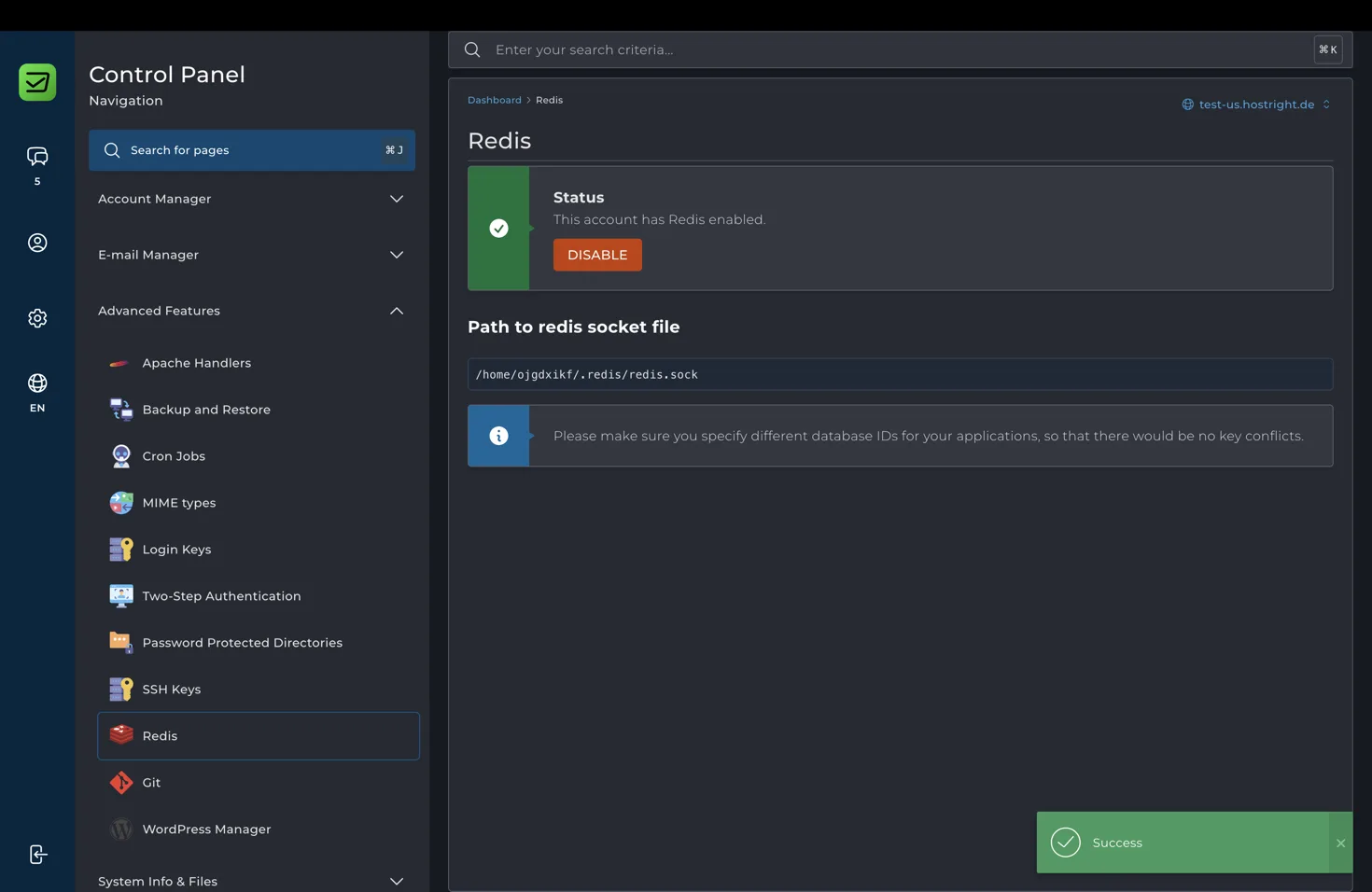
Redis is useful for sessions, rate limits, queues and frequently read data. First enable or create Redis in the HostRight control panel. Copy the account-specific socket or connection value shown by the Redis tool, then store it in an environment variable such as REDIS_URL.
With the redis package:
const { createClient } = require('redis');
const redis = createClient({ url: process.env.REDIS_URL });
redis.on('error', (error) => console.error('Redis error', error));
redis.connect();
Use a separate Redis database number for each application when the service supports database selection. Redis is not a replacement for the SQL database. The Redis guide explains the socket setup after this basic feature configuration.
SSL and proxy awareness
Issue the domain certificate after DNS points to HostRight. Express applications behind a managed proxy should set trust proxy so secure cookies and protocol detection work correctly:
app.set('trust proxy', 1);
Use secure cookies in production and redirect HTTP to HTTPS at the hosting or application layer. Complete the SSL certificate setup after reading this basic requirement.
Deploy changes
cd ~/apps/myapp
git pull --ff-only origin main
npm ci --omit=dev
npm run build
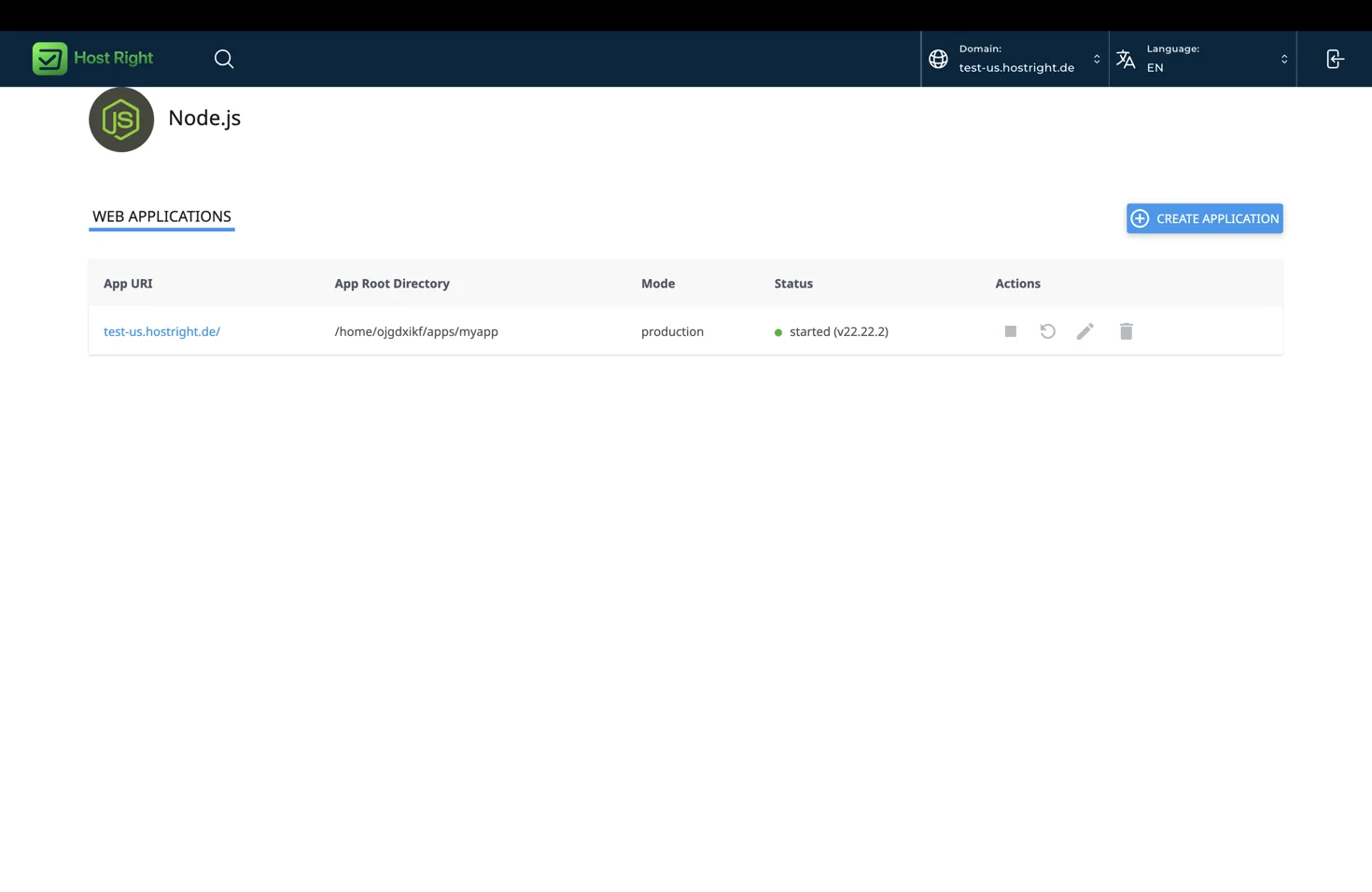
Restart the application from HostRight Control Panel. The application list shows whether the process is started or stopped.
Troubleshooting
Application error: verify app.js, the application root and the Node.js version. Run node app.js inside the managed environment.
Port error: use process.env.PORT and bind to 127.0.0.1. Do not select a random public port.
Missing module: run npm ci from the same application root and confirm the package is in dependencies rather than devDependencies when needed in production.
Database failure: check the host, database name, user, password and permissions. Confirm DATABASE_URL is present in the application environment.
Redis failure: verify the socket or URL, client package and Redis database number. Restart after changing the variable.
Static file 404: confirm public exists, the express.static path is absolute or based on __dirname, and the URL matches the mounted prefix.